Proudly Singaporean
Best Portable Monitors in Singapore
Our first portable monitor purchase happened because a work call landed at a hawker centre table and a 13 inch laptop screen alone was not going to cut it for a shared spreadsheet review.
That single afternoon turned into six weeks of testing every widely searched portable monitor on Shopee, because once you start hunting for a proper second screen in Singapore, the listings multiply fast and most of them read exactly the same on paper.
Singapore adds its own wrinkles to this search. A screen that looks bright enough in a marketing photo often washes out completely under real midday sun at a void deck bench or beside a window seat in a cafe.
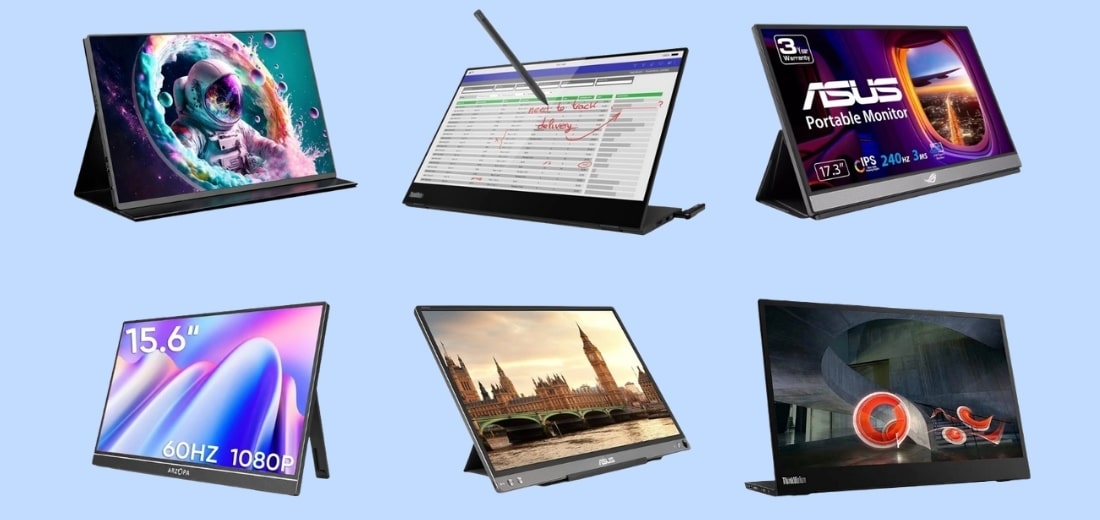
We bought six of the most searched portable monitors on Shopee and ran them through three weeks of actual daily use.
Each unit went through outdoor glare checks, overnight humidity exposure, and enough plugging and unplugging to see which stands actually held their ground.
Here is what actually held up, and what nobody tells you until after you have already paid for shipping.

How We Tested
Every monitor went through the same starting checklist. We connected each one to a laptop over USB-C, measured brightness under both indoor office lighting and direct window light, and timed how long setup took from unboxing to a working screen.

How this review is localised for Singapore
Sun and Glare Test We checked outdoor readability at a void deck bench and a cafe window seat around midday, the harshest lighting most people will actually use these screens in.
Humidity Test Units sat out during a stretch of rainy weather, and we checked each panel afterward for fogging, lag, or connection issues.
Small Space Test We measured the full footprint with a stand and cables attached, since that number is always bigger than what the product photo suggests.
Portability Test Each monitor spent a week riding around in an ordinary work bag to see which ones survived daily commuting without scuffs or loose hinges.

Finding the right portable monitor for you
Best Overall: ASUS ZenScreen MB16NCG
Why We Chose It
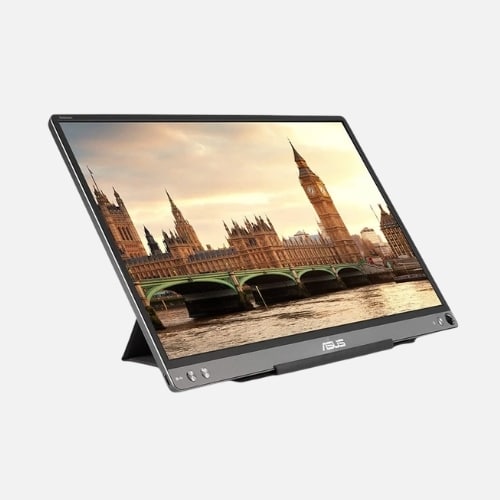
We ran this through video calls, spreadsheet work, and a weekend of casual gaming to see how the panel handled motion. At 2560 by 1600 resolution and a 155Hz refresh rate with overclocking enabled, text stayed sharp and fast scrolling never smeared, which is rare for a screen this thin.
The full sRGB coverage also held up when we placed it next to a calibrated desktop monitor for a photo editing session, and the colour gap was smaller than we expected for a travel screen.
Two USB-C ports handle both video signal and power pass through, so we ran a laptop off one cable while pulling power from a separate bank on days we worked away from an outlet.
Auto rotate switched the display to portrait mode on its own once ASUS DisplayWidget software was installed, which turned out genuinely useful for reading long documents and scrolling through code.
Key Specifications
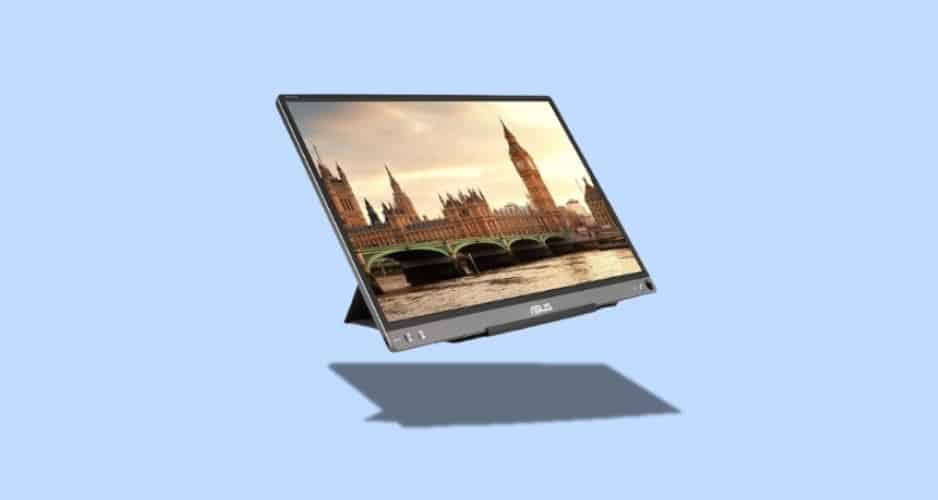
- 16 inch 16:10 IPS panel, WQXGA 2560 by 1600 resolution
- 155Hz refresh rate with overclocking, 5ms response time
- 100 percent sRGB colour coverage
- Dual USB-C ports with power pass through, plus mini HDMI
- Auto rotate feature with built-in tripod socket
- Roughly 0.78 kg
Pros
- Sharp resolution paired with a fast refresh rate, a combination rarely found together in a portable screen
- Colour accuracy strong enough for casual photo and video editing on the go
- Two-way power pass through keeps a laptop charged through long working sessions
- Slim enough to slide into most laptop bags without adding real bulk
Cons
- Priced above most portable monitors in this size class
- No touchscreen option on this particular model
- Needs a laptop or tablet with DisplayPort Alt Mode to unlock full performance

What Singaporeans Say
Reviewers on Shopee consistently mention how sharp text looks compared to older portable monitors they used to own, and several point to the auto rotate feature as the main reason it stays out on their desk every single day.
The listing holds a strong rating online, and most of the criticism in the lower star reviews centres on price, not performance.
Best Budget: ARZOPA A1

Why We Chose It
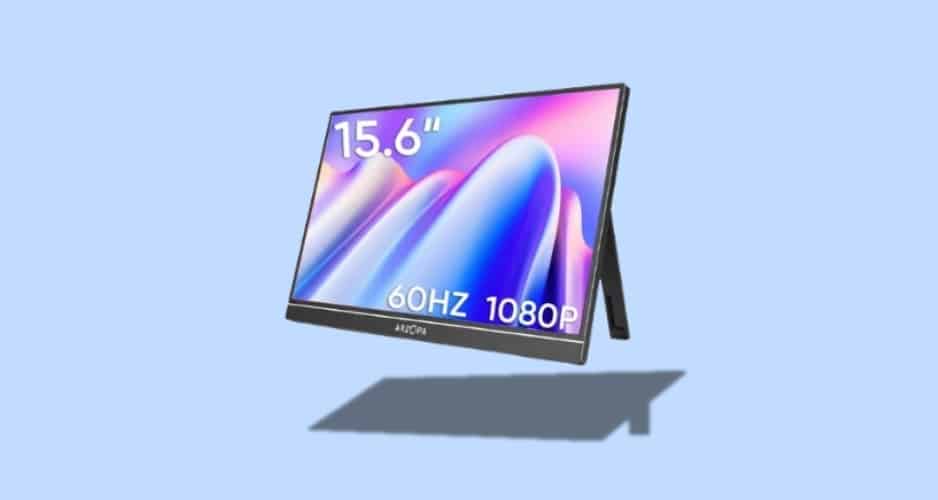
We used the A1 as a secondary screen for web browsing, note taking, and a few evenings of light Nintendo Switch play. It draws power through a single USB-C cable, and it also runs off mini HDMI paired with a USB-A cable if your setup calls for that instead.
Setup took under five minutes from box to working screen, no software required. At 250 nits brightness it noticeably dims under direct sun, so it works best indoors or under strong overhead lighting.
Colour coverage sits around 45 percent NTSC, which rules out serious editing work, but for spreadsheets, streaming, or a second browser window it does the job without complaint.
Key Specifications
- 15.6 inch IPS panel, 1080p resolution
- 60Hz refresh rate
- Roughly 250 nits brightness
- USB-C and mini HDMI input options
- Built-in adjustable kickstand
- Roughly 0.8 kg
Pros
- Genuinely low price for anyone still deciding if a second screen fits their workflow
- Simple single-cable setup with no drivers to install
- Compact enough for almost any desk or lap
- Handles daily browsing, spreadsheet work, and casual streaming without issue
Cons
- No USB-C power pass through, so it can drain a laptop battery over a full day
- Limited colour coverage makes it unsuitable for design or photo work
- Screen flexes slightly under pressure due to the slim metal frame
What Singaporeans Say
Local buyers on Shopee frequently mention the price as the whole reason they took a chance on this monitor, and most walk away satisfied with a screen that simply does what it says.
Some note the panel feels a touch flexible, though the metal frame keeps it from ever feeling flimsy. A handful mention noticeable lag during fast gameplay, so this is not the pick for anything competitive.
Best for Outdoor and Cafe Use: Lenovo ThinkVision M14
Why We Chose It
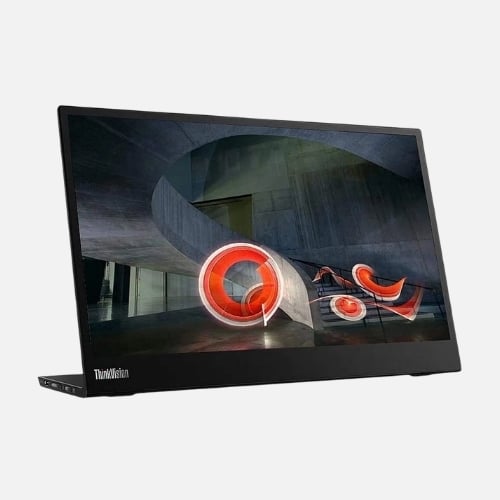
Its 300 nit IPS panel runs brighter than most portable monitors we tested, and the dual USB-C ports, one for input and one for pass through charging, kept our laptop topped up through a full working session.
The metal kickstand felt genuinely stable and held its position even under a strong gust from a nearby aircon vent.
We tested it side by side with a cheaper monitor at a Tiong Bahru cafe on an overcast afternoon, and the M14’s image stayed legible through the window glare where the cheaper screen washed out almost entirely.

Key Specifications
- 14 inch IPS panel, 1080p resolution
- 300 nits brightness
- Dual USB-C with DisplayPort Alt Mode and 65W pass through power
- Kickstand with tilt and 90 degree pivot
- 6ms response time
- Roughly 0.63 kg
Pros
- Brightness genuinely holds up against window glare and outdoor light
- Dual USB-C setup makes charging a laptop while using the screen effortless
- Kickstand feels sturdy even on uneven cafe tables
- Compact 14 inch size fits neatly into small HDB desk setups
Cons
- One of the pricier options on this list for a non-touch, non-gaming screen
- 14 inch size may feel small if you are used to a larger display
- No included cover stand, so a separate pouch is worth carrying
What Singaporeans Say
Local reviewers describe the M14 as reliable for travel, often calling out how little space it takes up once folded down to 0.63 kg with its case.
One buyer mentioned pairing it with a laptop on a train ride and finding the dual USB-C setup made hookup completely painless.
Best for Gaming: ASUS ROG Strix XG17AHPE
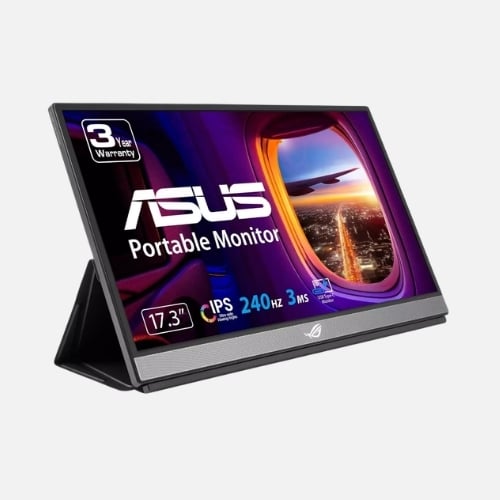
Why We Chose It
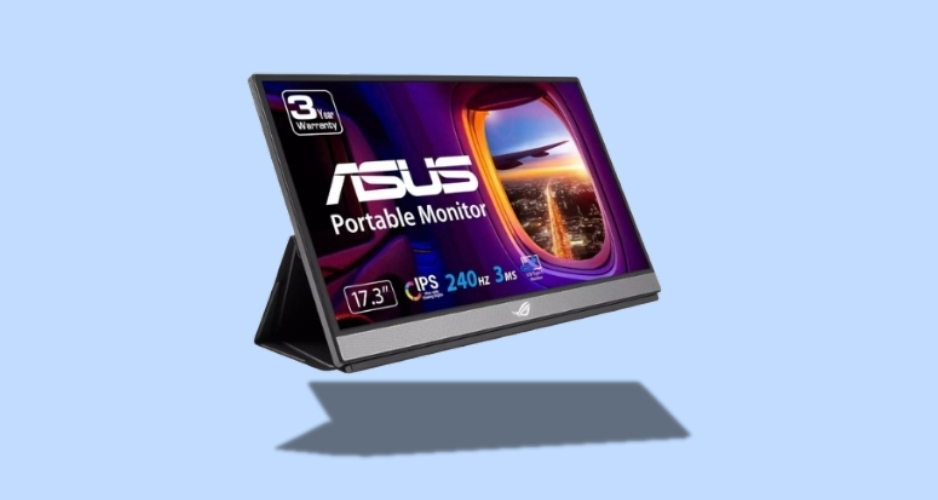
The 240Hz refresh rate and fast response time made a real difference during our lounge tests with both a PS5 and a gaming laptop.
Motion stayed smooth and ghosting was nearly impossible to spot, which let us line up shots cleanly in fast paced games without the usual blur.
A built-in battery rated for roughly three hours of gaming meant we could play at a park bench without hunting for a plug, though the tradeoff shows up in weight at 1.7 kg.
Adaptive Sync support removed screen tearing across both console and PC connections, and the metal kickstand doubled as a comfortable carry handle during setup and teardown.
Key Specifications
- 17.3 inch IPS panel, 1080p resolution
- 240Hz refresh rate
- Built-in battery rated for around 3 hours of gaming
- USB-C and mini HDMI inputs
- Built-in stereo speakers
- Roughly 1.7 kg
Pros
- Refresh rate and response time genuinely competitive with a proper gaming monitor
- Built-in battery frees you from needing a wall outlet nearby
- Adaptive Sync eliminates tearing across console and PC setups
- Kickstand doubles as a sturdy carry handle
Cons
- Heaviest option on this list, which cuts into its portability
- Full power draw under load still needs the included adapter
- Barely qualifies as pocket friendly at 17.3 inches, so it needs a proper bag

What Singaporeans Say
Players on Shopee consistently praise the smoothness during fast paced games, with one reviewer noting it let their laptop finally show what its graphics card could actually do.
Another highlighted the battery as the reason it works for balcony gaming sessions without needing a socket nearby. A few flag the price as steep, which lines up with this being built for serious gamers.
Best Touchscreen: Lenovo ThinkVision M14t
Why We Chose It
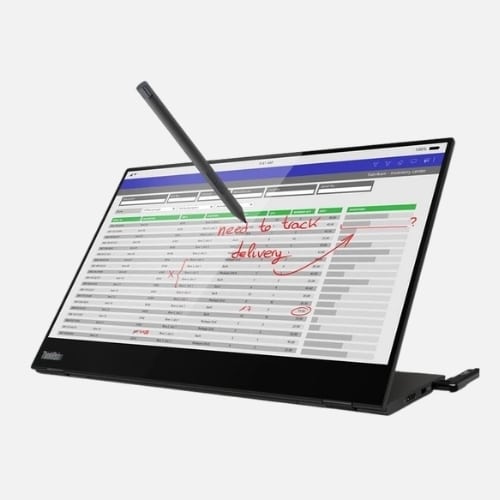
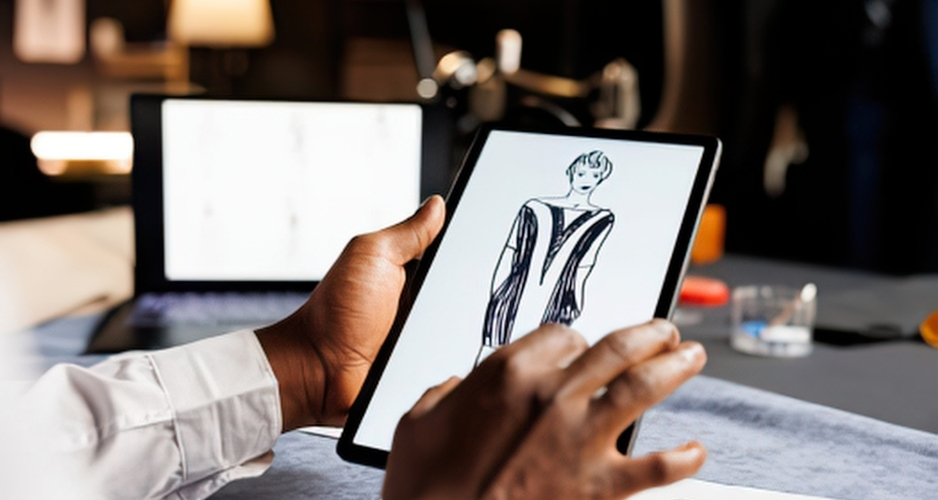
The M14t carries the same 300 nit 14 inch panel as its non-touch sibling, now paired with 10-point capacitive touch and support for Lenovo’s Active Pen, sold separately.
In office tests we annotated PDFs and sketched inside Photoshop without lag, and palm rejection worked well enough that resting a hand on the screen while writing did not throw off the pen input.
Touch adds almost no compromise elsewhere, since the M14t stays just as light at 0.7 kg and keeps the same dual USB-C power setup.
We propped it up at a client meeting and swiped through slides directly on the screen, which drew a fair bit of attention from colleagues used to a standard laptop presentation.

Key Specifications
- 14 inch IPS panel, 1080p resolution, 300 nits brightness
- 10-point capacitive multi-touch
- Dual USB-C with DisplayPort Alt Mode and 65W pass through power
- Built-in speakers
- Roughly 0.7 kg
Pros
- Touch input feels responsive and accurate enough for real annotation work
- Same bright, glare-resistant panel as the standard M14
- Stays light despite the added touch layer
- Turns presentations into something more interactive than a standard screen share
Cons
- Costs more than the non-touch version for the same base panel
- Included stand only tilts, no full 90 degree pivot for portrait use
- Battery life depends entirely on the host device, since it has none of its own

What Singaporeans Say
Remote workers describe the screen as feeling closer to a giant tablet once it is flipped flat on a lap, and one reviewer mentioned it made video calls feel noticeably more interactive when sharing a screen.
Buyers generally rate it well, with most hesitation in reviews coming from the higher price compared to a plain non-touch monitor.
Best for Creatives: UPERFECT BE16CU 16 Inch 4K
Why We Chose It
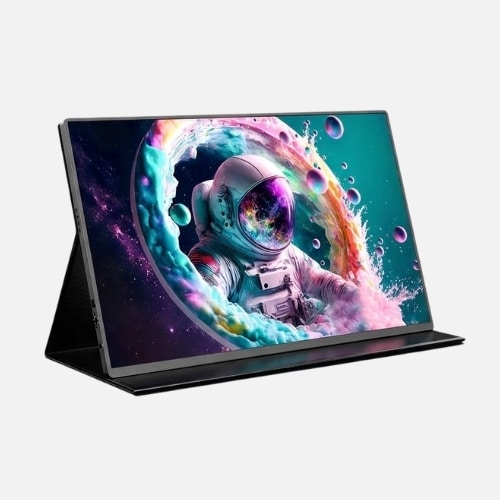
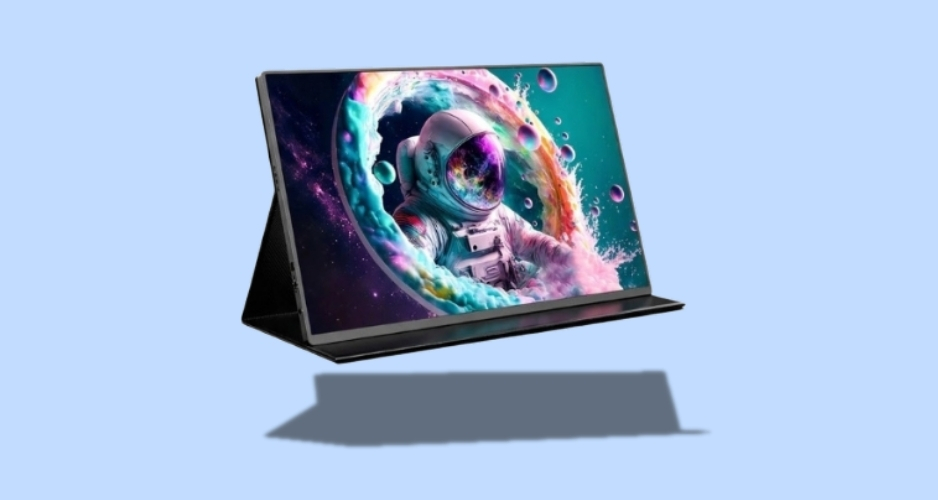
This 16 inch 3840 by 2400 panel handled bright conditions better than any other screen we tested, thanks to a rated 1200 nits of brightness. Under direct overhead LED light and natural window light, images stayed crisp and colours held their punch without glare washing anything out.
The panel covers 100 percent sRGB, noticeably wider than the 60 to 100 percent range typical of cheaper portable screens, which showed clearly once we compared colour swatches side by side.
Connected over USB-C or HDMI, it paired easily with a MacBook, a Windows laptop, and even an iPad through an adapter, and playing back 4K footage on it revealed detail a standard 1080p screen simply cannot show.
Key Specifications
- 16 inch IPS panel, 3840 by 2400 resolution
- 1200 nits brightness, HDR10 support
- 100 percent sRGB colour coverage
- USB-C and HDMI inputs
- Built-in tripod-style stand
- Roughly 1.2 kg
Pros
- Brightness and colour coverage rival monitors that cost several times more
- 4K resolution reveals genuine detail for photo and video review
- Works across Mac, Windows, and iPad setups without much fuss
- Strong value once you account for the panel specs on offer
Cons
- No internal battery, so it depends on continuous USB-C power
- Driving full 4K resolution smoothly needs a reasonably capable laptop GPU
- Taller 16:10 aspect ratio adds black bars when watching standard 16:9 video full screen
What Singaporeans Say
Local content creators frequently mention how usable the screen stays in bright, uncontrolled lighting, with one vlogger describing the HDR mode as strong enough to edit comfortably near an open window.
Reviews note the lack of a built-in battery as the main tradeoff, though most consider it a fair one given the panel quality on offer.

Before You Buy
A few things worth sorting out before adding any of these to your cart.
- Measure the full footprint, not just the screen. Product photos flatten everything. Once you add a kickstand, a sleeve, and cables, a “compact” monitor can take up more desk space than the listing suggests.
- Be honest about how often you will use extra features. Touchscreens and high refresh rates are genuinely impressive, but plenty of buyers stop using them past the first week if daily habits do not actually call for them.
- Buy from an official store or authorised seller. Warranty claims and replacement parts move far more smoothly through a recognised seller than through a random reseller listing.
- Plan around Singapore’s humidity even for enclosed setups. A dry pouch or a case with some airflow protection is worth having if the monitor rides around in your bag daily.

news via inbox
See our latest reviews of goods, conducted right here in Singapore.